Tag: computers

  • Digital Curriculum: Destiny or Disaster?

    From the first day of full time employment at a school, I was put in charge of “Technology”, not for my design process skills, but for my knowledge of ICT and computers. I became the go to guy in fixing problems with teacher laptops, sound systems and projectors. That soon became student Chromebooks and student iPads. Of course, the school had external support as well, but having someone onsite is incredibly convenient, especially when ICT can be problematic at the drop of a hat, and is becoming more and more relied upon by teachers to bring learning to today’s learners.

    You’d think I’d be incredibly excited and enthusiastic about the announcement of the new ‘digital curriculum’ being implemented around the country in 2020. What an opportunity to share my passion and knowledge of ICT with the next generation and prepare them for the world of tomorrow as we delve deeper into the digital age.

    However, I’m not.

    You see; I’m also a self-taught programmer myself. I design and code websites. This site was built by me, though largely a theme, it has been modified to suit my own tastes and coded to reflect that. I have built my own personal website from the ground up on the back of WordPress. I dabble in CSS (with SASS / LESS), PHP, HTML, and Javascript.

    There’s not many teachers (especially primary school) who can say that!

    I know that behind every code, there is a whole bunch of trial and error, refreshing, and testing. Programming is largely just problem solving.

    My issue is that in my current job, that we are having trouble enough teaching students to read, write, and do math, let alone be able to create a simple script that includes tags, if/else statements, or simple calculations.

    In 2015, I taught a class with one-to-one Chromebooks, and we spent the first term learning how to spell our last names, because the school email address for students is firstname.lastname@schoolname.ac.nz.
    Then it was time to remember our passwords.

    Sure, the curriculum itself isn’t going to be getting students to create complex code or learn any particular language, just like Year 1 students won’t be learning their 8 times tables. However, it would seem to me that certain priorities need to be addressed first – such as basic literacy and numeracy skills. Something tells me that for many students, it will become a matter of running before they can walk.

    My other gripe is that the Ministry can announce a digital curriculum and implement it within a few years, and yet there still isn’t an actual Māori / Te Reo Māori curriculum. I guess it shows where the priorities are.

    Fun and Games?

    So then, what will they be doing? And will it be at all relevant to what they need in the future? Or is it all just a little bit of fun and games and doing something “cool”?

    The curriculum document says:”

    In years 1–8, these two areas are usually implemented within other curriculum learning areas, integrating technology outcomes with the learning area outcomes. These two areas also significantly contribute to students developing the knowledge and skills they need as digital citizens and as users of digital technologies across the curriculum. They also provide opportunities to further develop their key competencies.

    NZC Online, TKI. 

    It goes on to outline exactly what “Computational thinking for digital technologies” and “Designing and developing digital outcomes” mean for the students, and a lot of it is around raising awareness of what computers are capable, what their limitations are, what problems can be solved with them, and what possibilities there are. It ranges from programming to digital media and safety online.

    So it might not all be so doom and gloom – especially considering that for the most part, I already try to integrate digital technology throughout all other areas of learning.

    Those of you who have ever been around children and technology, you’ll know at how quickly they pick things up and run with them. I remember my 2 year old nephew taking photos on my phone and then flicking through them all after he’d taken some!

    Are you Ready?

    I have to give the Ministry some credit here too. Unlike National Standards where they were inflicted upon us without any kind of preparation or support, they have gone above and beyond to provide schools with resources and support through their Kia Takatū ā-Matihiko – Digital Readiness programme. Schools wanting to up-skill and get on board with the new digital curriculum should head over there now and check out the resources on hand to support you and your staff in getting up to speed with the new curriculum area.


  • Coding in the Curriculum

    In 2018, the New Zealand Curriculum is destined to have a new addition to its subjects.

    From the age of five, children will now be taught about coding, logic, problem solving, if-else statements, app making, social media analytics, and probably hacking as well.

    But there is a lot, a LOT, of apprehension about this, even as a techie myself (for instance – I design websites, and have coded for much of my adult life). Put it this way; I’m not jumping up and down about this announcement.

    Who?

    I don’t know about you, but the first thing I asked was who is going to do this? I have met many a good soul who dedicate their lives to teaching students, but who’s computer literacy is extremely limited.

    And while the content knowledge required to for Level 1 of the curriculum will be very basic, it still requires a great deal more teaching knowledge to be able to teach it effectively. What are students getting stuck on? What are the next steps? How do I solve the next problem?

    Take for example Level 1 of the Reading curriculum. It’s fairly straight forward. Most, if not all (fairly presumptive, I know) adults could achieve this. Now think of the teaching knowledge you would need in order to teach it effectively. The sounds, the blends, the phonics, digraphs, vowel sounds and rules around their usage, the common pitfalls and sticking points as well as the various strategies required to assist and help students to progress to level two. And that’s just scraping the surface of teaching students to read.

    Imagine the level of teaching knowledge that is going to be required to effectively teach digital literacy.

    And now take that to level two, and level three of the curriculum.

    My current estimate, based on my current place of employment and the various other schools I have worked in, would be that about 10% of teachers would have the skill set required to teach digital literacy if it was introduced tomorrow. And that 10% is probably generous. Most of what makes a good programmer, coder, or even just a ‘tech guru’ is the ability to solve problems. When something goes wrong, you need to know what to do to fix it, systematically, step by step, eliminating variables as you go. From experience, many teachers struggle to problem solve why their projector isn’t connecting, or why the sound isn’t working on their laptop. How do we then get to a place where teachers are teaching students even more complex problem solving when you introduce if-else statements that don’t work!

    Many non-tech-savvy people turn to one demographic for help. Young people. Why? Because they’re already up with the play on technology. Their desire to explore, to learn, to develop skills with technology seems to happen automagically, and I can only see teachers and schools getting in the way of that. As well as this, I read an interesting post about ‘future-proof’ learning, predicting what the future holds for our students, and how we can’t and shouldn’t be including things in the curriculum that are a phase, or a fad.

    (Note: I realise that schooling exists past primary school; but we already have specialist subject teachers at Intermediate and High School level, and so schools would merely employ a specialist ‘digital literacy’ teacher.)

    How?

    Another aspect that may or may not have been considered is how schools are going to teach it. You know, the practical side of it. You see; I’ve only once had to write down a piece of code on paper (during a Comp101 exam I took in Uni). It was nigh on impossible not being able to check and edit the code to improve it or to see if it worked. A lot of coding is trial and error.

    Essentially, if digital literacy is to be taught, then students will need devices. Doing it with pencil and paper will only last so long.

    Now I’m not sure about your school; but our decile 2 school has only just got to the point of having 1 device between 2 in the senior school, and 1 to 4 in the junior school. Yes; we can combine sets of these devices to allow every student to have access to one, but my point is, there are lots of schools out there who wouldn’t have this level of technology in their school yet.

    With more devices comes more problems. More students who run into connection issues, which in turn requires the teacher to know how to solve that problem (many of which once again, don’t know how to go about doing this on their own laptops as it is).

    When?

    Ultimately though, when are teachers going to fit this in? Or is it going to be integrated throughout the day? I guess that comes down to the individual teacher. But I know for one, I would love to spend more time teaching students how to use the Chromebooks, how to code a website, and more; but the reality is that I have a hard enough job covering the rest of the curriculum sufficiently, as well as the ever increasing demand on Maths, Reading, and Writing, without adding more to that workload.

    Gripe

    Don’t get me wrong. I’m not having a go at my colleagues or other teachers. They all have strengths and are all marvellous teachers. I merely see a massive gap between adding a subject to the curriculum and the current knowledge of those that have to deliver content about that subject. Massive gap.

    I can see my job as a tech-savvy teacher becoming more than it already is, as I can see me having to assist with other classes tech problems more than I already do, provide support for when tech devices go wrong, and provide ongoing P.D. as teachers encounter problems or inspiration that they want to explore.

    Once again – not sure when I’m going to actually get to teach my own class.

  • Using Google Drive instead of My Documents

    Sometimes old habits die hard. Sometimes default settings also can be a bit of a pain. Sometimes you can set up all the synchronisation you want, but files will still get lost somewhere in the blue void.

    That’s my experience with Windows in schools. Microsoft does a very good job for the most part, but it has always been a bit of a sticking point when a teacher arrives at work on Monday and suddenly their work from the weekend goes missing. Or they’ve logged in on another computer and suddenly don’t have all the files they thought they did.

    Firstly, before we even look into using Google Drive, I want to say one thing. Back up your files.

    Then back them up again. Put them on a USB or portable storage. Take them home. Back them up again. Just in case.

    I make a habit of doing it every year at the end of the year. Some would even suggest doing it more regularly. Every term, or every month. However, now that I’m using Google Drive to store my files, I’m finding that the need to back up is much, much less than if I were purely relying on Windows and My Documents synchronisation.

    Google Drive

    Okay. So what is this amazing thing called Google Drive?

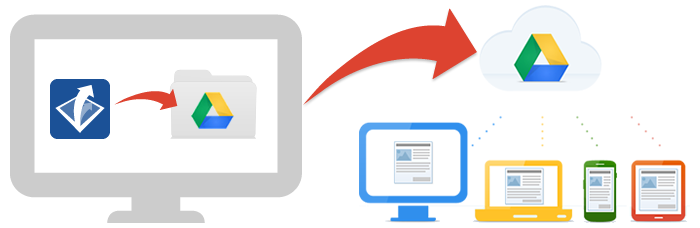
    Basically it is a server of all your files on the interweb. In a cloud some people say. It’s a USB stick, except instead of plugging it in, you simply log in online. This image below gives you an idea of how it works.

    All your files, uploaded to Drive, available on all your devices. Essentially we are setting up one big backup each time we make or create or edit or move any document in ‘My Documents’. And what’s more, space has just become unlimited with Google Apps for Education (#GAFE)

    Find out more about using Google Drive here: www.google.co.nz/drive

    From here you can click on  and create a new Google Doc, Google Sheet, Google Slide, or Create Folders to store your documents in, just as you would in My Documents.
    The Incoming tab will display all your shared files, along with any files that have been shared with you.

    The Recent tab displays the most recent files you have created or opened and worked on.

    In the Starred tab, you can see any files that you have starred (just like emails that you ‘star’ in Gmail)

    Bin is where all your deleted files are kept just in case.

    Searching and Finding

    Remember; Google is a search engine first and foremost. This means they can apply the same search functions to your documents as they can to the entire world wide web.

    At the top of the Drive home page (drive.google.com), or the Docs home page (docs.google.com), is a search box. This can search through any document you have opened or put into your drive.

    Do not forget you can use the Incoming and Recent tabs to help with finding documents.

    Integrating Google Drive with Windows

    There is a great program for Google Drive which creates a folder on your computer for your Google Drive documents. This then syncs up with your Google Drive on the internet.

    ANY file can be put onto Google Drive. It’s not just limited to Google Docs. This includes old planning files, PDF’s, images and photos of your class, worksheets, and other resources.

    1. Go to http://www.google.co.nz/drive/download/ and click on Download → Mac and PC.
    2. Once it’s downloaded open it and install with the preset default options.
    3. It will require you to sign in at some point.
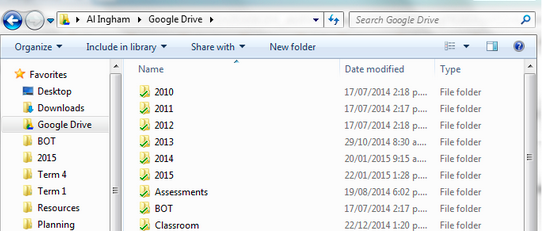
    4. You will now see a Google Drive option in your “Favourites” bar when you go to Windows Explorer (Windows+E).
      Here you can see I have copied all my teaching files over from My Documents to Google Drive.
      When I save a file, instead of saving it in My Documents, I save it to the Google Drive folder.
    5. In Libraries (down bottom left of the picture above), click on Documents


    6. You will see a bar at the top of the window. Click on Includes: 2 locations
      (Note: Mine says 3, yours may have a different number)
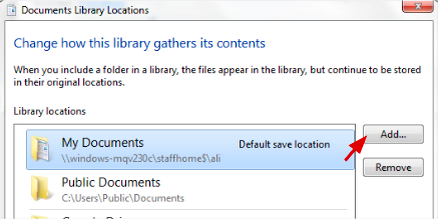
    7. On the right of the pop up box, click on Add.
    8. Find your Google Drive folder (should still be on the right in your favourites) and click on Include folder.
    9. You should now have your Google Drive folder showing up as a location.
    10. Right click on Google Drive and select “Set as default save location
      I then right click on it and select “Move Up” until it is at the top. This means when you click on “Documents”, your Google Drive location will show up at the top.
    11. Click on OK. And now you are all set up and ready to go!

    Tips and Tricks

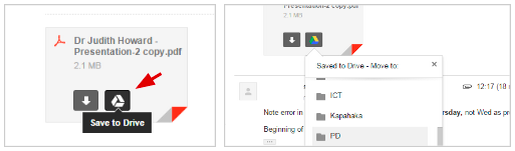
    1. You can save attachments straight from emails to your drive. Just click on the Drive icon that shows over the attachment in Gmail. Then you can choose which folder to put it in afterwards, and open it in your Google Drive.
    2. Use the little arrow at the end of the Google Search bar to filter your search results before you search. Maybe you can’t remember the title of the document, but you can remember that it was shared by a particular person or was a PDF. You can select these first. This arrow also works in Docs, Gmail, and all the other Google Apps.