Tag: code

  • Teaching Portfolios: Making them Work

    Even though they are not required by the Teaching Council, many schools use Teaching portfolios to show evidence that a teacher is meeting the criteria and standards for registration, and therefore can be signed off when their registration comes up for renewal.

    The format of appraisal and the keeping of portfolios has been a bug-bear of teachers for a while now, with the increase of workload in collecting evidence and putting it in a portfolio for something that is not actually required.

    However, I argue that portfolios are a good way of keeping records of your teaching career and can help make you a more reflective teacher in the process. I think that they would be worth maintaining even if they are not required.  While I acknowledge there is a bit of work required to keep it, there are several ways in which you can streamline the process so that keeping a portfolio is no longer a burden or a time-sapping exercise.

    The following are several keys to success that I’ve found along the way so that keeping and maintaining your teacher portfolio.

    Rule 1: Make it work for you; instead of you working for it…

    The number one thing you need to do when making your portfolio is to make it work for you.

    What does this mean?

    Put simply, choose a system, a method of keeping evidence, resources, materials, artefacts that is natural to you. If you’re a hands on person who prefers hard copies of things, then use a clearfile or lever-arch folder, or even a cascading folder.
    If you keep a lot of your teaching work in Google Docs, or use Google Drive a lot, then create a folder for evidence and put all the files in there.
    If you put a lot of your teaching work online, then you could set up a blog or website.

    Choose a system that works for you

    • Clearfile
    • Lever-arch File
    • Cascading Folder
    • Cardboard Box
    • Google Drive Folder
    • One Note Notebook
    • Google Site
    • Website
    • Blog

    You can find out more about each of the main ways to organise your portfolio at the following articles:

    Date Based Portfolio

    Standard Based Portfolio

    Organise it how your brain works

    Following on from the previous point on making it work for you: Setting up your portfolio in the way that your brain operates means that organising and maintaining your portfolio will be second nature to you rather than battling with yourself internally each time you come to update it.

    There are two main ways in which you can organise your teaching standards portfolio:

    • Date Based
      This consists of folders or sections labeled by date (ie. 2018, 2019, 2020). In each folder you put evidence of your teaching practise as it happens.
    • By Standard
      This consists of creating a set of six folders or sections, one for each of the six teaching standards. As you create each piece of evidence, simply put it in the folder that it best suits.

    Obviously there are other ways as well. I’ve found the best to be a combination of these two ways. It doesn’t matter really how you choose to organise it, as long as whichever way you choose is how your brain best processes a portfolio of this kind.

    Robust yet Flexible

    It wouldn’t be a blog about teaching without a bit of an oxymoron in it. When you set up your portfolio, make sure whatever system you choose to organise it in is robust. Stick to it, and keep it consistent. At the same time however, be flexible enough to adapt it to fit your needs as you go. Don’t be afraid to try new things, reorganise it or adjust it as you need to. Remember, the first rule is key: this HAS to work for you. As soon as it doesn’t, you’re working for it and it become cumbersome.

    Tags Are Your Friend

    One thing I have found the more and more portfolios I have made over my years as a teacher is that you need a way to tag or categorise each piece of evidence. Regardless of whether you go with a date based or standards based approach, having a system of tags will save you a lot of time. Using tags avoids the problem mentioned next.

    Avoid doubling up

    There is nothing more demoralising to a teacher (or anyone for that fact) than having to do something twice.

    Therefore, ensure that you only have to enter evidence into your portfolio once. The use of computer based portfolios certainly helps with this, especially with evidence that fits under multiple standards.

    Avoid doubling up

    There is nothing more demoralising to a teacher (or anyone for that fact) than having to do something twice.

    A very good portfolio will find a way in which you can keep your work organised when you create it AND enter it into your portfolio at the same time. This is somewhat of a pipedream, though definitely possible. Essentially this is where flexibility of your system is key, as this wouldn’t be possible for every piece of evidence, but definitely a possibility for some.

    Keep an eye out for more…

    We will be adding more Teacher Portfolio ideas, tips, tricks, and how-to guides in the near future. Check back here for more!

  • Digital Curriculum: Destiny or Disaster?

    From the first day of full time employment at a school, I was put in charge of “Technology”, not for my design process skills, but for my knowledge of ICT and computers. I became the go to guy in fixing problems with teacher laptops, sound systems and projectors. That soon became student Chromebooks and student iPads. Of course, the school had external support as well, but having someone onsite is incredibly convenient, especially when ICT can be problematic at the drop of a hat, and is becoming more and more relied upon by teachers to bring learning to today’s learners.

    You’d think I’d be incredibly excited and enthusiastic about the announcement of the new ‘digital curriculum’ being implemented around the country in 2020. What an opportunity to share my passion and knowledge of ICT with the next generation and prepare them for the world of tomorrow as we delve deeper into the digital age.

    However, I’m not.

    You see; I’m also a self-taught programmer myself. I design and code websites. This site was built by me, though largely a theme, it has been modified to suit my own tastes and coded to reflect that. I have built my own personal website from the ground up on the back of WordPress. I dabble in CSS (with SASS / LESS), PHP, HTML, and Javascript.

    There’s not many teachers (especially primary school) who can say that!

    I know that behind every code, there is a whole bunch of trial and error, refreshing, and testing. Programming is largely just problem solving.

    My issue is that in my current job, that we are having trouble enough teaching students to read, write, and do math, let alone be able to create a simple script that includes tags, if/else statements, or simple calculations.

    In 2015, I taught a class with one-to-one Chromebooks, and we spent the first term learning how to spell our last names, because the school email address for students is firstname.lastname@schoolname.ac.nz.
    Then it was time to remember our passwords.

    Sure, the curriculum itself isn’t going to be getting students to create complex code or learn any particular language, just like Year 1 students won’t be learning their 8 times tables. However, it would seem to me that certain priorities need to be addressed first – such as basic literacy and numeracy skills. Something tells me that for many students, it will become a matter of running before they can walk.

    My other gripe is that the Ministry can announce a digital curriculum and implement it within a few years, and yet there still isn’t an actual Māori / Te Reo Māori curriculum. I guess it shows where the priorities are.

    Fun and Games?

    So then, what will they be doing? And will it be at all relevant to what they need in the future? Or is it all just a little bit of fun and games and doing something “cool”?

    The curriculum document says:”

    In years 1–8, these two areas are usually implemented within other curriculum learning areas, integrating technology outcomes with the learning area outcomes. These two areas also significantly contribute to students developing the knowledge and skills they need as digital citizens and as users of digital technologies across the curriculum. They also provide opportunities to further develop their key competencies.

    NZC Online, TKI. 

    It goes on to outline exactly what “Computational thinking for digital technologies” and “Designing and developing digital outcomes” mean for the students, and a lot of it is around raising awareness of what computers are capable, what their limitations are, what problems can be solved with them, and what possibilities there are. It ranges from programming to digital media and safety online.

    So it might not all be so doom and gloom – especially considering that for the most part, I already try to integrate digital technology throughout all other areas of learning.

    Those of you who have ever been around children and technology, you’ll know at how quickly they pick things up and run with them. I remember my 2 year old nephew taking photos on my phone and then flicking through them all after he’d taken some!

    Are you Ready?

    I have to give the Ministry some credit here too. Unlike National Standards where they were inflicted upon us without any kind of preparation or support, they have gone above and beyond to provide schools with resources and support through their Kia Takatū ā-Matihiko – Digital Readiness programme. Schools wanting to up-skill and get on board with the new digital curriculum should head over there now and check out the resources on hand to support you and your staff in getting up to speed with the new curriculum area.


  • PTC Portfolio – Example Template

    So part of my job is providing PD for our staff on a variety of things, usually anything to do with ICT.

    I have been asked to run a workshop on online PTC portfolios, and so as part of that, I built an example PTC site, complete with How-To guide to get your own PTC Portfolio set up just like it.

    ptcportfolio.wordpress.com

    You can head on over to the site and use it if you’re looking at putting your PTC Portfolio up online. Don’t worry, you can keep it all private and make the most of being able to access your portfolio from anywhere.

    Of course, I used WordPress.com, one of the most widespread CMS’s available, and is what I use personally for my own PTC Portfolio.


  • Tynker – Introducing programming to students

    Today I introduced the class to Tynker today, three days before the end of the year! Probably should have got them hooked on it well before now. But regardless, there’s not time like the present for trying things out and experimenting, so that you can implement something for next year’s class!

    What’s more, is with Tynker, it was relatively simple to get started.

    Getting Started

    1. Head to www.tynker.com
    2. Sign up for a teacher account. I used my school email address, but any is available. You can also sign up using Google or Facebook accounts.
    3. Once you’ve signed up, it will have created a default class. I created a new one, and got the class code.
    4. Get your students to go to tynker.com/schools and then they should click “Sign Up” for a student account. They can sign up using their Google account if you use Chromebooks at your school.
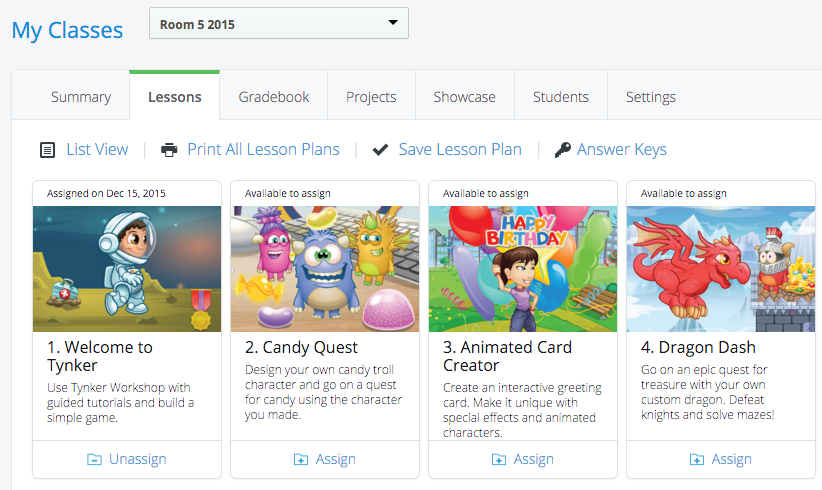
    5. Once in, the students can get involved. I clicked on the “Lessons” section of the dashboard.
    6. Click on “Assign” to give students access to getting started with Tynker. Make sure you remind students to read the instructions that are given. There are limited options, but then I do only have the free account version.

    And that’s about it. You’re in. You’ve got them started!

    How it works

    Once the students are signed in there are a couple of things they should do. Firstly, they should be reminded to read and follow the instructions. Many will be so keen and ‘gun-ho’ that they’ll skip past the tutorials to get to the ‘fun stuff’, and in the process, not know what to do.

    As the teacher, I recommend assigning the “Welcome to Tynker” workshop as per the instructions in step 6.

    tynker1_yyr9j3

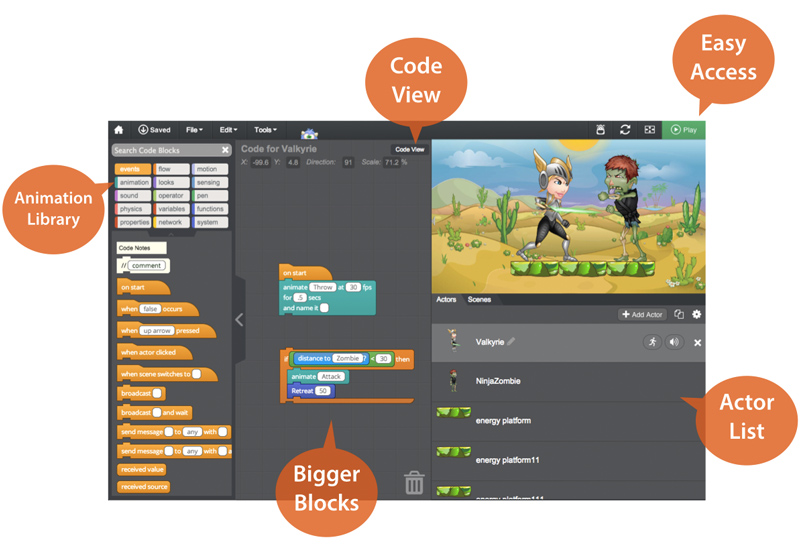
    Inside “Welcome to Tynker”, students will be taken through a series of tutorials that gets them working with characters, controlling them with their keyboards, and assigning sounds.

    It then works through adding “enemies”, and “rewards” to create the basis of a game.

    Students will be shown basic actions that they can drag over to the working area that then applies to the game or programme that they are making. These are completely customisable to allow for different characters to do different things. Animations, sounds, movement, key presses; all of them are able to be used to create a different part of the game. It even allows loops of actions to be repeated a number of times or loop when a particular event happens.

    And that’s about as far as we got! It definitely has a lot of options, and for motivated students, I could imagine that this would be very beneficial.

    As a coder myself, I can see how the blocks being placed together translates into sections of code that achieve different parts. The correlation between what the student creates in a series of instructions and what it makes the characters do is very clear, and very well understood.

    Hour of Code

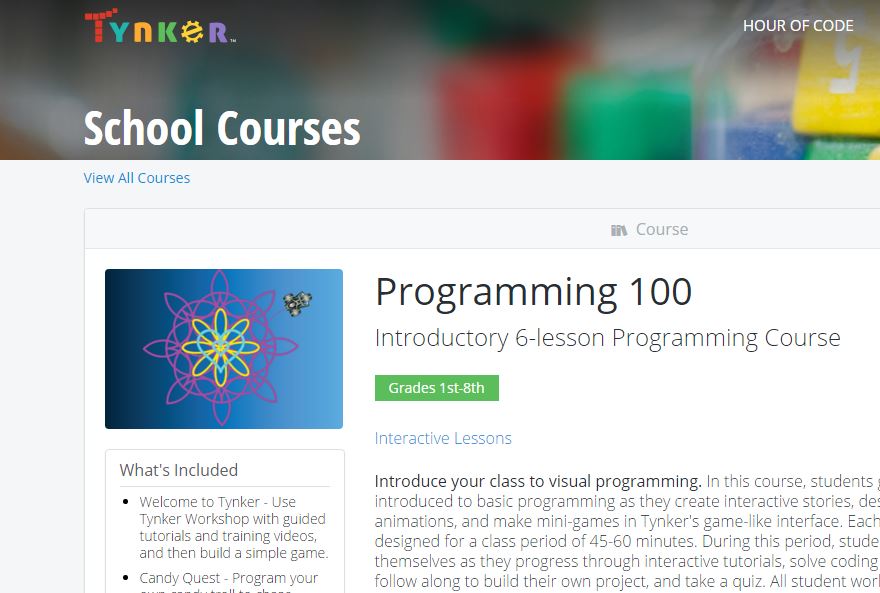
    As part of the Hour of Code initiative, Tynker has opened up a variety of activities that encourage the same kind of coding and programming skills. There are different levels, from beginner to intermediate, and a range of ‘worlds’, from Hot Wheels, to Candy Quest.

    If you know more about this, please leave a comment or two in the comments section below to add more information to this blog post!