
So you’ve gotten used to saving attachments from your G-Mail straight to your Google Drive. It’s pretty handy isn’t it!?
But what about when you download that PDF resource? You can’t just select your Drive and it goes straight there (unless you have Google Drive for your PC).
Not to worry. There is a very easy way to do this seamlessly using Google Chrome.
Step 1
First you will have to open up your drive in another tab. http://drive.google.com
Step 2
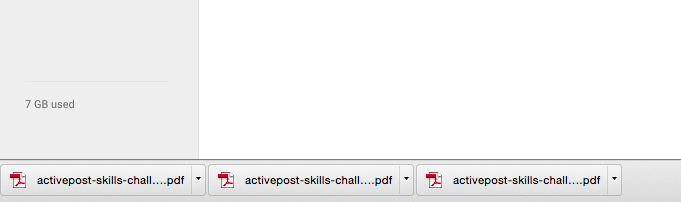
Your downloaded files have finished (hopefully) and are now displayed down the bottom of your browser.
All you have to do, is drag the file from the bottom of the browser into your drive window. They will then begin uploading straight away.

Step 3
And you’re done! You will see the little Uploads black box in the bottom right corner and be able to watch your files be uploaded into your drive.
No more looking through your Downloads folder or trying to find where you downloaded them to before uploading them manually to your Google Drive. You can do it all from inside your browser window!
I suspect that this trick will work in other browsers that list downloaded files, but have not tested it. Let me know if you’ve tried it and it works in Firefox or IE10!
Leave a Reply