
https://youtu.be/OZjv8orVuBo
Category: Archived
All the old posts from years gone by.
-
How to use Realtimeboard in the Classroom
Yesterday I posted about Realtimeboard, an online whiteboard I have begun using in my class to collate and collect the work that we work on together.
Today I plan to take you through the steps for getting started, making your first board and general use of the app. I’m sure that I won’t be able to cover everything that the app can do, but hope to give you enough of a start so that you can realise for yourself the power of this software and how you might start using it in your classroom.
Step 1. Getting Started
I am going to assume that you’ve managed to get yourself signed up, and hopefully have managed to get approved for an educator account. If not, I highly suggest that you do. Go to realtimeboard.com/education/ and fill in the form. They actually get back to you a lot sooner than they suggest.
Once you have signed in, you’ll be greeted by your dashboard. You may get a “What’s New” as is customary these days with these kinds of apps.
 The dashboard is relatively straight forward. You have your created boards at the top, and some demo boards below.
Clicking on the Google inspired blue “plus” circle will create your first board.
Realtimeboard has done well to make this app resemble any of the native Google Apps, by including “Shared with me” and “Last Opened” menu filters on the left hand side.
At the top right, there are account links and settings options.
Click the plus to create a new board.
Step 2. The Workspace
Navigating
The Realtimeboard workspace is essentially an infinite ‘canvas’ or board stretching out beyond the edges of the screen. There are a few, quick tips you’ll need to know for getting around.
- Using the mouse roller button, or doing two finger scroll on most trackpads these days will zoom in and out from your canvas. It zooms towards or away from the position of the mouse cursor on the screen.
- Clicking on the canvas and dragging allows you to move around the canvas at the current zoom rate.
- Clicking on an object selects that object and allows you to perform different operations with them.
- Double clicking will centre and zoom (in or out) to fit the selected object to the whole viewport.
- Arrow keys also allow you to move around the canvas
- Esc key exits from the current operation. If you are typing text, it will go back and show the selection of the text box. Pushing Esc again will deselect the textbox. Obviously, if you’ve only selected a shape, pushing Esc once will deselect it.
Zooming in and out allows you to get right into the little details, as well as zoom out to see an overview of your board. Using these together, especially with frames mode creates great transition animations as the viewing screen zooms in and out to fit the screen.
Top Left
 The top left, as with many Google Apps that Realtimeboard has mimicked, includes the Title & Document Name and a Home button to return you to the Dashboard.
In addition, Realtimeboard offers an “Export” button, which allows users to save the board off in a range of different formats. This is incredibly useful for a number of reasons and uses, such as including the board in a different document, keeping an archived version of the board, or merely just backing up. It also allows you to save it straight to your Google Drive; if you have linked your account.
 Tools
ToolsRealtimeboard includes all the tools you would expect to find in such an app. Each tool even has a shortcut key which is incredibly helpful for quickly changing tool. I’ve included these in square brackets.

The pointer tool has two options. One is the standard Select tool [V], and the other is the hand, or Pan [H], which allows users to drag the viewport around the canvas. The select tool defaults to the hand tool when clicking on the canvas background instead of an object on the board. 
The Text tool [T] brings up a standard text cursor that users can use to create text boxes on the whiteboard using click and drag 
Hello Sticky Notes [N]! This is possibly one of the cooler tools that can be used to show key bits of information, or student’s ideas and suggestions. You can post one at a time, square or landscape, or create multiple notes at once. Great for writing down different student views from around the class! 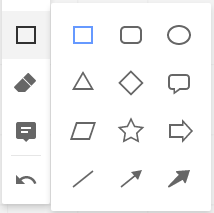
 It wouldn’t be a whiteboard without the Shape [S] tool. Gone are the days of teachers having to practise drawing perfect circles on their blackboard. Now, just select the shape and then click and drag it to the desired size on your canvas.
You can also add text to shapes!
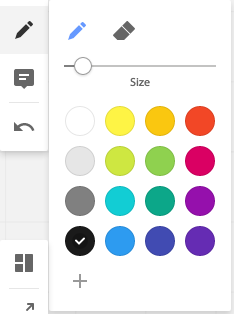
The Pen [P] and Eraser [E] tools are great additions for the whiteboard. You can quickly select the desired size and then free hand draw or write onto the canvas with a selection of colours. While these are initially limited, you can also add your own custom colours from the spectrum. The eraser tool works really well, but only for lines drawn with the pen. It does not erase shapes for example.

Comments [C] are integrated into Realtimeboard much like they are in Google Apps. You can even mention other collaborators directly. Like in Google Docs where you can assign comments to words or lines or sections, you can place comments on any part of the canvas. 
Undo [Ctrl+Z or Cmd+Z] is the most used tool, and it’s no surprise that the folk at Realtimeboard have built this into their app, along with the common shortcut people will be used to. 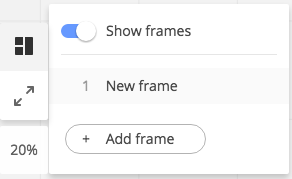
Lower down the tool menu, Frames [F] (which I am quite impressed with as mentioned on my overview). This tool allows you to create “pages” or “views” within the whiteboard. You can then navigate between them using the arrow keys (only when in Frames). When using this tool, you can select the size and drag it to incorporate whatever you like to appear in the ‘view’. 
Fullscreen does just that. No bells. No whistles. But quite useful none the less, especially when displaying this on an actual whiteboard. 
The last tool is the Minimap [Z], or zoom tool. This essentially allows you to return to the default zoom or size of the document, as well as showing a mini-map of your board (remembering that it could be gigantic on an infinite whiteboard!). Inserting Media
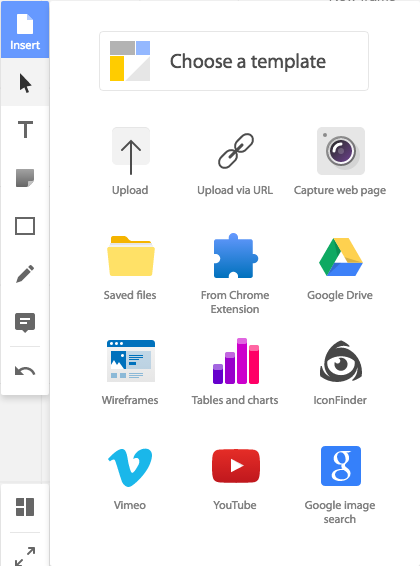 The other tool is at the top of the whole list. It allows you to do a range of different things:
- Choose a template from a range of different layouts and examples of what Realtimeboard can be used for.
- Uploading images, files from your local computer.
- Uploading images etc from a URL.
- Screenshot of a webpage.
- Recently uploaded files that you’ve already uploaded.
- Files from the Realtimeboard Chrome Browser Extension.
- Files from your Google Drive (if you have connected your account in settings).
- Wireframes are great! They are a quick-select library of templates or layouts which are quick and easy to add into your board. See below for the examples.
- Tables and Charts to give a quick visual of data or statistics is built into this app nicely.
- IconFinder allows you to add a selection of icons to make your board more visually rich.
- Vimeo allows you to select video from Vimeo.com.
- Adding videos from YouTube.
- Add images from Google Image Search.
Top Right
 Once again, Realtimeboard have been smart in keeping the same kind of features they offer in the same location as Google Apps. In the top right, includes a Share button to add ‘viewers’ or ‘editors’ and ‘collaborators’. You can invite people using their email addresses, and you can set the level of privacy, from ‘Can View’, to ‘Can Comment’, and ‘Can Edit’. You can also get a ‘Public’ link that allows you to easily share it out to everyone.
Next to the share button are the ‘Comments’ that have been made, all available in one place.
The Information button gives you quick links to feature pages of Realtimeboard. These are not related to the document.
The Search button does just that; searches your board for a given word or phrase.
Other Features
The only other feature is key to real-time collaboration with others, and that is the Chat Feature in the bottom right corner. Video Chat requires a premium account, but screensharing appears to be available – although I have yet to try this. I can imagine this might be quite useful for view only collaborators.
The other great feature of Realtimeboard is that it automatically saves, just like Google Apps.
3. Creating Content
Adding Text
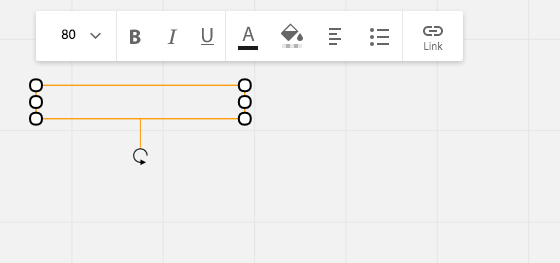 One of the most common tasks you’ll want to do is adding text.
- Select the Text tool [T]
- Click on the board where you want the text to start.
- Start typing…
As with most text tools, there are a number of formatting tools for use. From left to right;
- You can choose the font size
- Set the text as Bold, Italic, or Underlined, or a combination of all three.
- Change the font colour, or the Fill colour. The fill colour sets the background of the text box to the colour you select.
- Set the alignment of the text within the box, from left, centre, or right.
- Create a bulleted list.
- Create a link.
Modifying Objects
With all the objects placed on the board, the orange outline shows the object that is selected. This goes away when another object is selected, or you click off that object (or press Esc).
The white circles around the outside of the selection allow you to change the dimensions of the box by clicking and dragging them in the appropriate direction. The corner circles allow for diagonal adjustments, and with text boxes, or if you hold down shift as you drag, these will keep the proportions as you adjust them. The circles in the middle of each outline allows for adjustment in either the horizontal or vertical direction only.
The arrow on the end of a looped three-quarter circle allows you to rotate the object through 360 degrees.If you right click on an object, there is a drop down menu that will appear with a range of options. These are different depending on the type of object. Most of them however include the following tools:
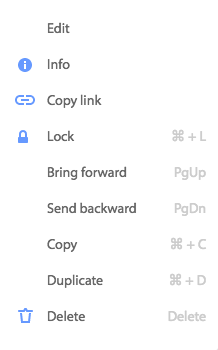
Right click menu on any object
 Right click menu on any image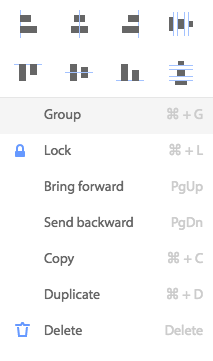
Right click menu when multiple objects are selected (using Shift)
Holding down Shift as you click on different objects allows you to select multiple objects at once. Right clicking on these selected object then allows you to group and/or align objects together, as well as other functions.
The key menu items I use from these are definitely the ‘Bring forward’ function, or the ‘Send backward’, which allows me to put things behind or in front of other things, particularly important when adding shapes and text to work in with each other.
Examples
I’m sure you’ll get the hang of it. Below I’ve just put up some examples of the content our class is currently experiencing through the Keeping Ourselves Safe programme run by the New Zealand Police. I spent a bit of time after our last session going through and adding a bit of flare to the content, more to show what is possible. I’ve included a few notes about how each was created.
Example 1

- Square shape, dragged to rectangle, filled with black.
- Text, text colour changed to white.
- Text, header box given a ‘pink’ fill, text colour to white.
- Same pink colour for down arrow (Shape).
Example 2

- Square shape made into rectangle, thick border, purple/blue (custom colour)
- 4x text boxes for each numbered point. Bold first line. Examples unbolded.
- Text header, given same fill colour as border of square. White text colour changed.
- Post-it Note added to right hand space. Font changed on note to ‘handwritten’.
Example 3

- Star Shape, Yellow Fill.
- Star shape (small), orange fill, duplicated 4x.
- 4x text box next to each small star.
- STAR heading. Rotated 90 degrees. Bold text.
- S.T.A.R, bold first letter. Bring to front over top of Star shape.
Each of these examples look like a Powerpoint slide, but these are just the tip of the iceberg of how you can create content, and then add to it to make it visually impactual for your class. Adding in frames allows you to present it like a slideshow, or simply use the Pan tool [H] to move around the content. Each of these three examples exist on the one Realtimeboard, and are visually linked by arrows that viewers can follow the lesson progression as we worked through it.
Right. That should be enough to get your feet wet. I’m sure that you’ll get the hang of it in no time, and begin creating a variety of creative and amazing content that will engage and inspire your students.
-
Realtimeboard: The Online Whiteboard for Teachers
So you need some whiteboard software?
Basically, there is software that is out there that mimics a whiteboard.
Then there’s Realtimeboard.
Online, creative, systematic, intuitive, custom, automatic, flexible. All the things you want in many software apps. But without adding so many options that it wipes out any function.
I’ve been using Realtimeboard for a while now, but was always limited by their “3 board for free” policy, where free account users could only create three ‘boards’. Being that I would probably prefer to have one board for each subject, or one board for each topic, or even one board per lesson, the 3 board for free policy wasn’t really going to work.
Recently, there has been a big push (even by Apple) for schools to ‘prove’ that they are a school, in order to offer educational packages to certified education institutions. Realtimeboard recently created a ‘education’ account that educators could sign up for. Their education package includes essentially their premium features, for the free package price. You can’t complain about that!
Features

Below are some of the features that make Realtimeboard my new app of choice:
Online
If you want your app to be successful, it needs to be online. No question about it. People need to be able to access it on any computer, or even, any device; phones, tablets, netbook, notebook, laptop, or desktop computer.
Realtimeboard is exactly that. It runs from the website, realtimeboard.com, much like Google Docs does, or WordPress. And like those, it has a dashboard that you’re taken to when you log in, with a grid or list view of your ‘boards’. As mentioned, the free account allows you to create only three boards, however, with the Education or Premium plan you can create as many as you like.
Sharing
To spread the use of your app, there is one thing above all else that will do that. The ability to share. Google does this seamlessly with their host of apps, all tying into Gmail and user contacts.
Likewise, Realtimeboard allows you to send your board to any email address to share it. You can set the privacy to be view only or edit – though I suspect that such users may be required to sign up to the Realtimeboard service as well – which is how they spread their product.
Sharing, in turn, also leads to collaboration, and is a key buzzword with anyone talking about technology and teaching together.
Google Drive
Integrating with a larger company’s product is a must. Realtimeboard not only allows you to sign up to its services using a Google Account, but then allows you to link with your Google Drive, and use your existing Google contacts list. This makes sharing boards a lot easier, especially with those on the same domain or those who also use Google Apps (which is most teachers these days). Add to that the fact that this will also work for students on Chromebooks, and it makes Realtimeboard an incredibly powerful tool.
 Web App on Chrome
So more and more people are using Chrome, and people are discovering that they can add Web Apps to the home screen. Realtimeboard also does this, as well as having a Google Extension that users can add to quickly copy content from webpages into a board of their choice in Realtimeboard.
The web app itself is little more than a link to Realtimeboard.com, but it sits nicely next to your Google Apps to remind you that it’s there, waiting to be of service!
Templates
With Realtimeboard, you can create a blank board, or use one of numerous templates which come pre-built with different layouts, different features, and different looks and feels. With that said, I mostly use a blank template to begin with, but in time, I can see the benefit of the templates if you have a specific learning module that requires one of the layouts seen in a template.
Presentation
Using the ‘Frames’ mode, users can use a frame to show a progression, turning Realtimeboard into a powerful presentation tool, much like Prezi or Impress.js. Each day in a series of lessons, or each lesson in a unit over the course of a term could be ‘framed’ up and put into a selective order. This makes it very flexible and usable for more than just keeping notes, or jotting down brainstorms.
More
As I say, I have only just started paddling in the pool of possibilities with this app. There is no doubt a range of uses and applications for it, both in the classroom as teachers, but also for students.
So go ahead and get signed up. Get using it. Explore a new realm of possibilities in real time.
Keep an eye out for an upcomingCheck out my post on this site for how to use Realtimeboard, with real screenshots of the different tools and functions that the app offers. -
David Seymour’s Crying Baby
Waaaa. Waaaa. Stop picking on my baby.
David Seymour sure is a whiney wet fish when he comes out to defend his precious little charter schools.
This came about as a charter school approached a nearby state school (after potentially pinching some of their kids so they could open) and asked to use their science laboratories (Essentially they just want the fume hoods, but lets face it, you’re going to end up using the whole space, not just the fume hood!).
While the school agreed out of good will, they were quickly advised by the Secondary school union ‘PPTA’, that any such arrangement with charter schools was something that was discussed and would not be entered into by state schools.
In steps David Seymour to fling dirt on the PPTA and try to undermine the PPTA’s credibility.
Unfortunately (for him at least) he’s come out like a pathetic parent who has no spine “Oh pretty please stop picking on my little child. Okay, well, maybe instead of punching and kicking it, you could just punch it. Okay, but just one kick.”.
Wet fish.
Watch the video.
“I think the critical thing here is that we’ve said for a long time there’s an orchestrated bullying campaign from the PPTA towards partnership schools – and it’s been particularly strong in Northland. It’s never been documented like this, it’s never been explicit.”
He said there was a “relentless, and frankly insidious campaign” to make life uncomfortable for charter schools.
“But what I would say is that all good, hard working teachers up and down the country might want to ask themselves if they want to be a member of an organisation that puts ideology ahead of kids like this. ”
As both the PPTA and the Labour leader point out, Charter Schools get much more funding than state schools could ever hope for.
“Labour leader Andrew Little says there is a legitimate question about whether charter schools should be getting help from state schools.
Especially when charter schools have roughly five times more funding for each student than state schools.
Mr Little says most people would say that’s pretty rough when state schools’ operational funding is being frozen.” – TVNZ“Roberts rejected Seymour’s comments.
“I think it’s a bit cheeky to expect the state system to prop them up even more than they are already.
“So our members have been very clear from the outset that charter schools – because of the way they pull resourcing away from state schools, and they make vulnerable schools and communities even more vulnerable – that we don’t support them.
“We will not prop them up because our commitment is to the students in the state system,” she said.
Roberts said a fume cupboard cost around a $15,000 – “I’m pretty sure that if they’re really careful about the way they cut their costs, they’ll be able to find the resourcing for it”.
“My understanding is Mr Seymour thinks we’ve pulled out the big guns and gone up there to try and bully them, but actually I met with my members, which I’m more than entitled to do, and we’ve done this on more than one occasion.
“I guess the issue is more broadly, charter schools have got the luxury of just thinking about the kids in their school, but we’ve got a commitment to all of the kids in the system.” – Stuff
-
Untrained Teachers Coming to a School Near You.
There’s been quite a lot on the go this week in educational politics.
But this one is one that should have every parent, school, and child very concerned.
Education Minister Hekia Parata defends trainee teachers in new legislation
At the release of the plans for partnership schools, there was very little surprise that they could hire who ever they liked as teachers, so that specially skilled and experts in different fields could work in these schools. It was advertised for the likes of Willie Apirana or Tana Umaga could be in front of a classroom and motivate and inspire children across a range of contexts and learning. Quite why they would want to be in a classroom instead of what they already do quite well, I don’t know.
However, at the same time, the Minister tightened the reigns over the Education Council, and the regulations around appraisal and registration were put under the spotlight.
This week however, the Minister has made a quick amendment to the Education Legislation Bill, that will essentially allow unqualified people to teach in state schools.
“The proposed amendment to the Education Legislation Bill allows schools to establish a “trainee teaching” position for a school.
According to NZEI, the primary teachers’ union, a “last-minute” change lets schools cheaply hire an “unqualified person in an unsupervised teaching role” while they did an initial teacher training programme.
There has already been a lot made of the Teach First programme, where after a ridiculously short training period, teachers are pushed out into the real world with qualification to teach in the classroom, and many criticisms have been made of it.
But why does the Minister suddenly need more teachers? We’re told that only 15% of graduates land a full time job.
It’s simple.
Experienced teachers cost money through salary to keep on staff. By reducing the number of experienced staff with jobs (through whatever method) they can be replaced by beginning staff who are paid less, due to the step that they will be starting on.
At a recent meeting, when discussing the negotiations between NZEI and the Ministry for the latest collective agreement where the Education Council will be paying for the registration of teachers, Hekia Parata mentioned that she finds it strange that teachers don’t want to pay money into the Education Council; and that instead of paying into the union (NZEI) we should be paying into the Education Council.
(Side Note: I might actually consider this if I had some kind of say on the Education Council; but if all the members on the council are simply appointed by the minister herself, then it is undemocratic and does not warrant my ‘subscription’.)
In addition to this, David Seymour has weighed in on a different factor, but also brought into question the place of unions in the Secondary sector. “But what I would say is that all good, hard working teachers up and down the country might want to ask themselves if they want to be a member of an organisation that puts ideology ahead of kids like this.” – David Seymour
What does this mean? Well, quite clearly, Hekia and her understudy don’t want the unions to exist. If teachers began paying into the Education Council instead of NZEI, then the union would cease to exist. If teachers leave unions on ‘moral’ grounds, then they will cease to exist. With all the control held within the Education Council, the Ministry can begin to tighten the screws even more on registration, and essentially drive out existing teachers. This has already begun to happen by using the whole vulnerable children act and finding “predators” that exist in the system. Each new case of child abuse from teachers or workers in schools as fuel to the fire of tightening the registration process, until even those of us who are great teachers, trained fully, and have a wealth of experience will be forced out as well.
But it’s okay. Because even before they have completed training (which is already so minimal it’s under question) those enrolled in the Teach First programme can begin teaching in permanent positions around the country to replace the teachers who leave.
No doubt, Hekia will come out with her standard response “It’s simply not true”, and the fact that there is no evidence to suggest this will happen is not a reason to ignore this as a threat in the future. The logical steps and the progression of this thing called GERM is taking place, and we’re seeing it happen right in front of it. They are put in for good reason, such as the registration process to weed out ‘those’ teachers, but their bigger mission opens it up to much more deviant possibilities.
Watch this space people. Watch this space!